> ## Documentation Index
> Fetch the complete documentation index at: https://docs.cardclan.io/llms.txt
> Use this file to discover all available pages before exploring further.
# How to set up CardClan as an action in Zapier
> Learn how to integrate CardClan as an action in your Zapier workflows for automated card sending.
## Step 1: Login to Zapier
Make sure you are logged in to your Zapier account.
## Step 2: Create a zap and set up a trigger
Choose your trigger app. It can be any app of your choice.
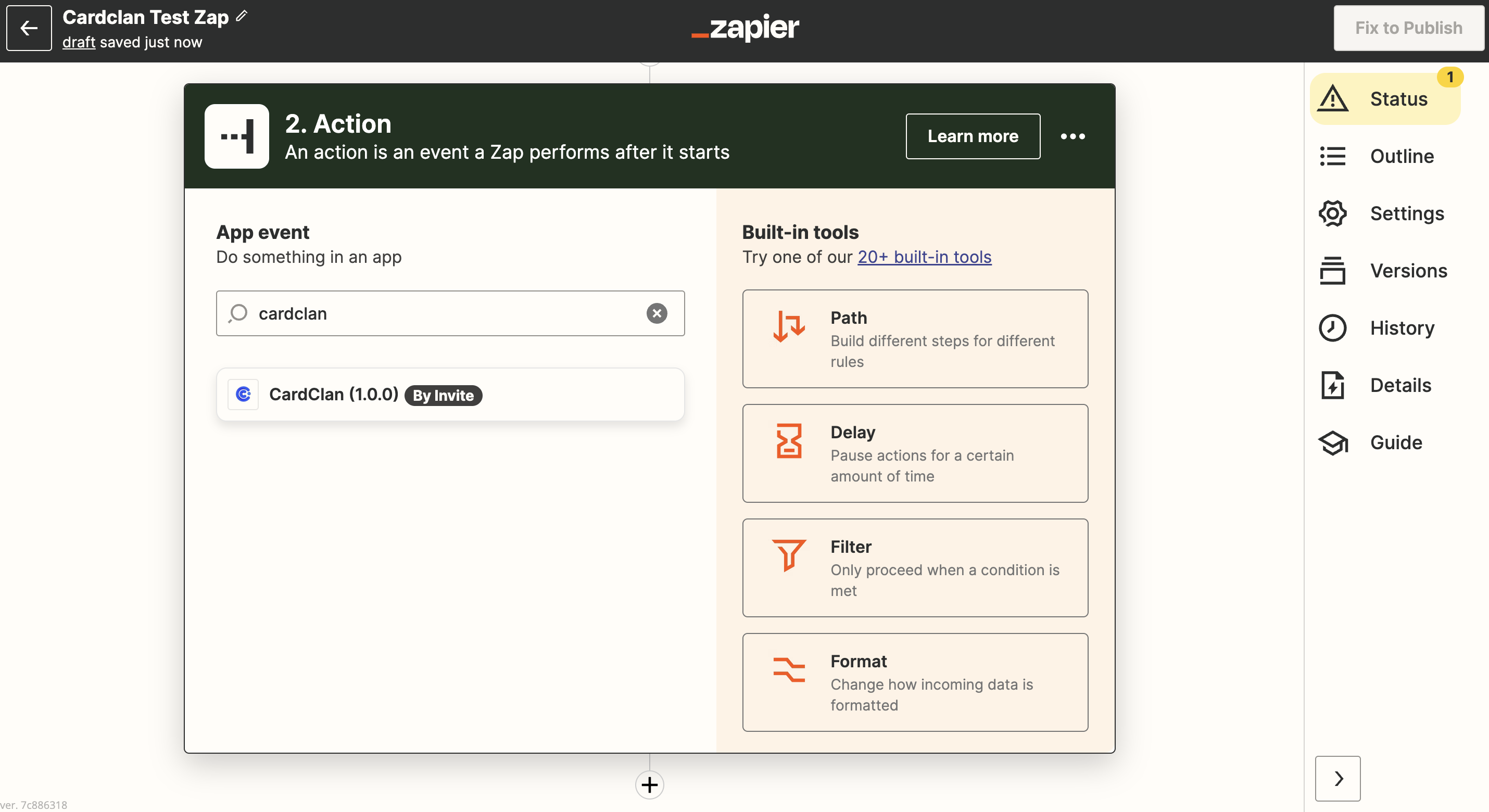 You will not find CardClan in the triggers because it can only be set up as an action.
## Step 3: Set up CardClan as an action
Once you are done setting up triggers:
1. Go to **Actions** and search for **CardClan**
2. Choose CardClan and select **Event**
You will not find CardClan in the triggers because it can only be set up as an action.
## Step 3: Set up CardClan as an action
Once you are done setting up triggers:
1. Go to **Actions** and search for **CardClan**
2. Choose CardClan and select **Event**
 ## Step 4: Connect your CardClan account
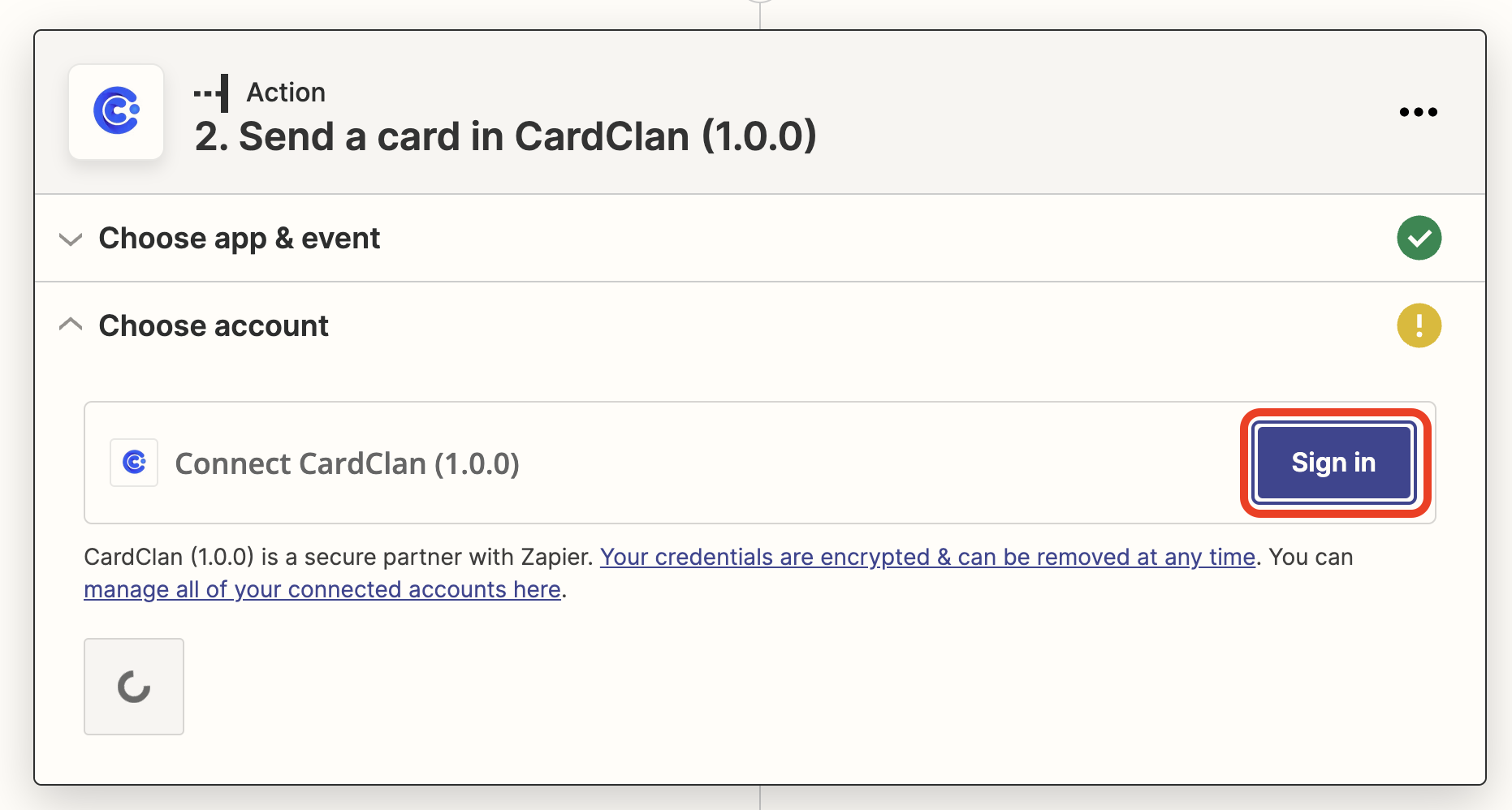
1. Click **Sign in**
2. Enter your API key here
## Step 4: Connect your CardClan account
1. Click **Sign in**
2. Enter your API key here
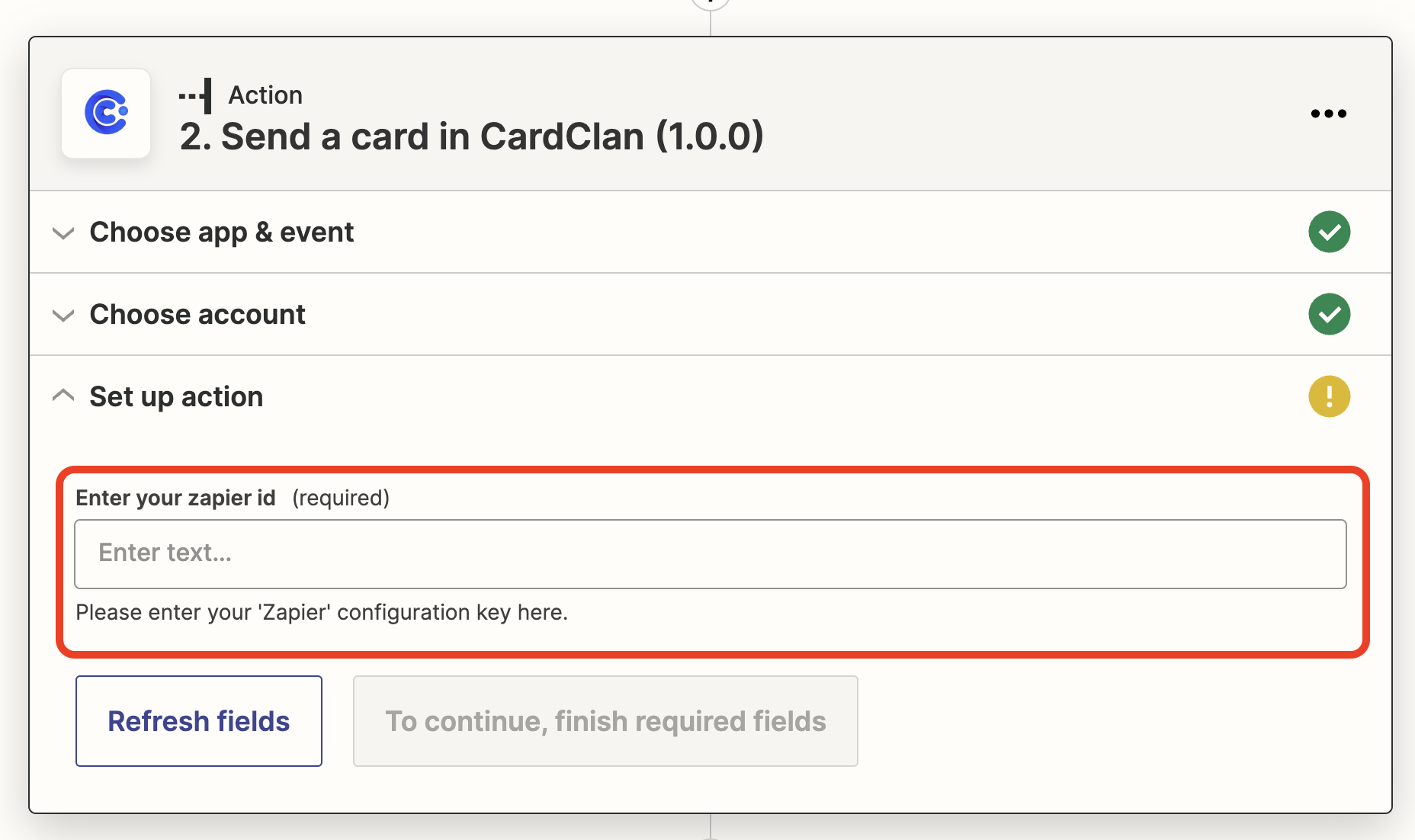 You can generate your API key and paste it. Learn [how to generate your API key here](/help/zapier-automation/generate-zapier-key).
Now your account is connected!
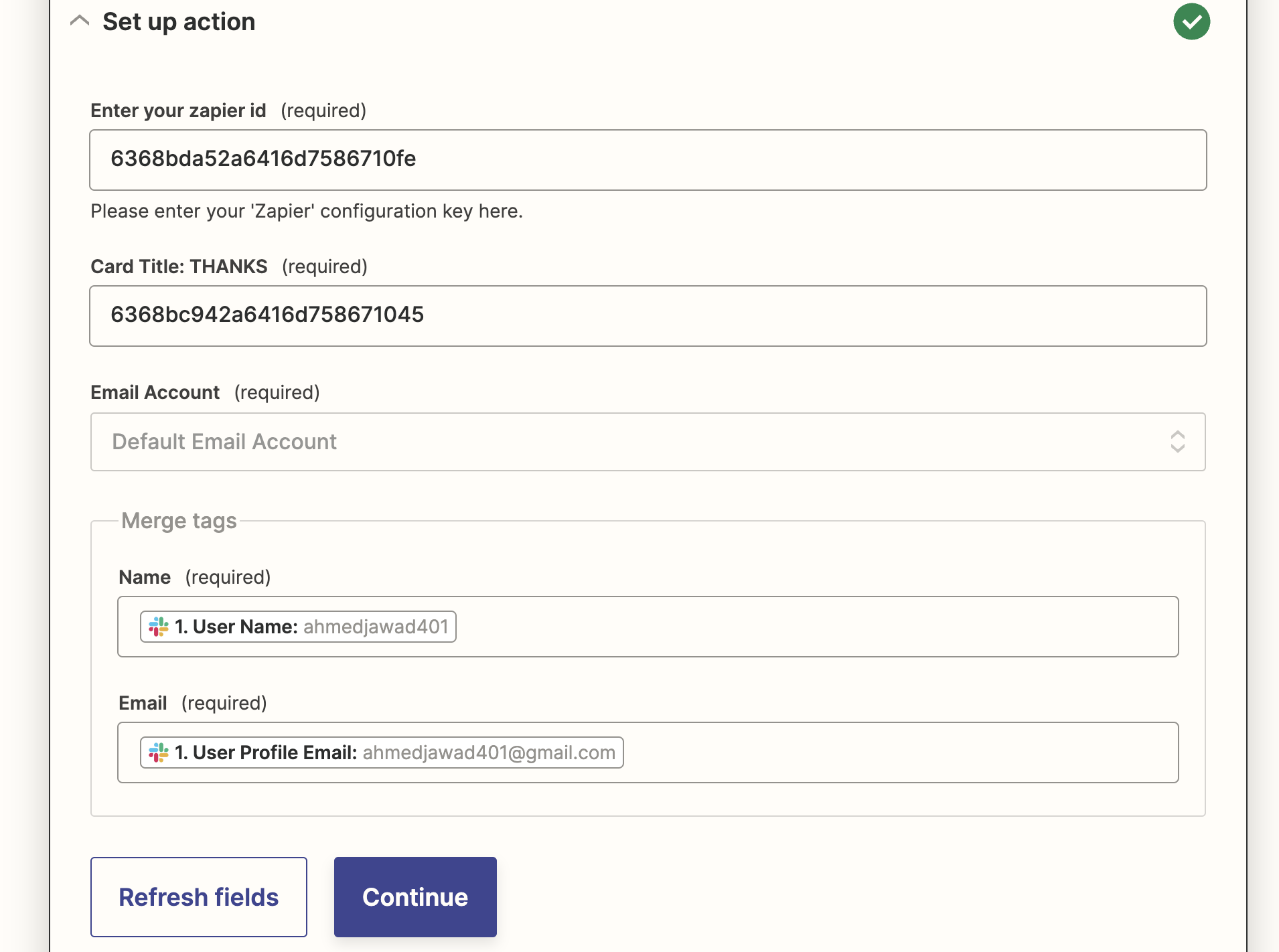
## Step 5: Enter your Card ID
You need to create a card first and then paste its ID here.
You can generate your API key and paste it. Learn [how to generate your API key here](/help/zapier-automation/generate-zapier-key).
Now your account is connected!
## Step 5: Enter your Card ID
You need to create a card first and then paste its ID here.
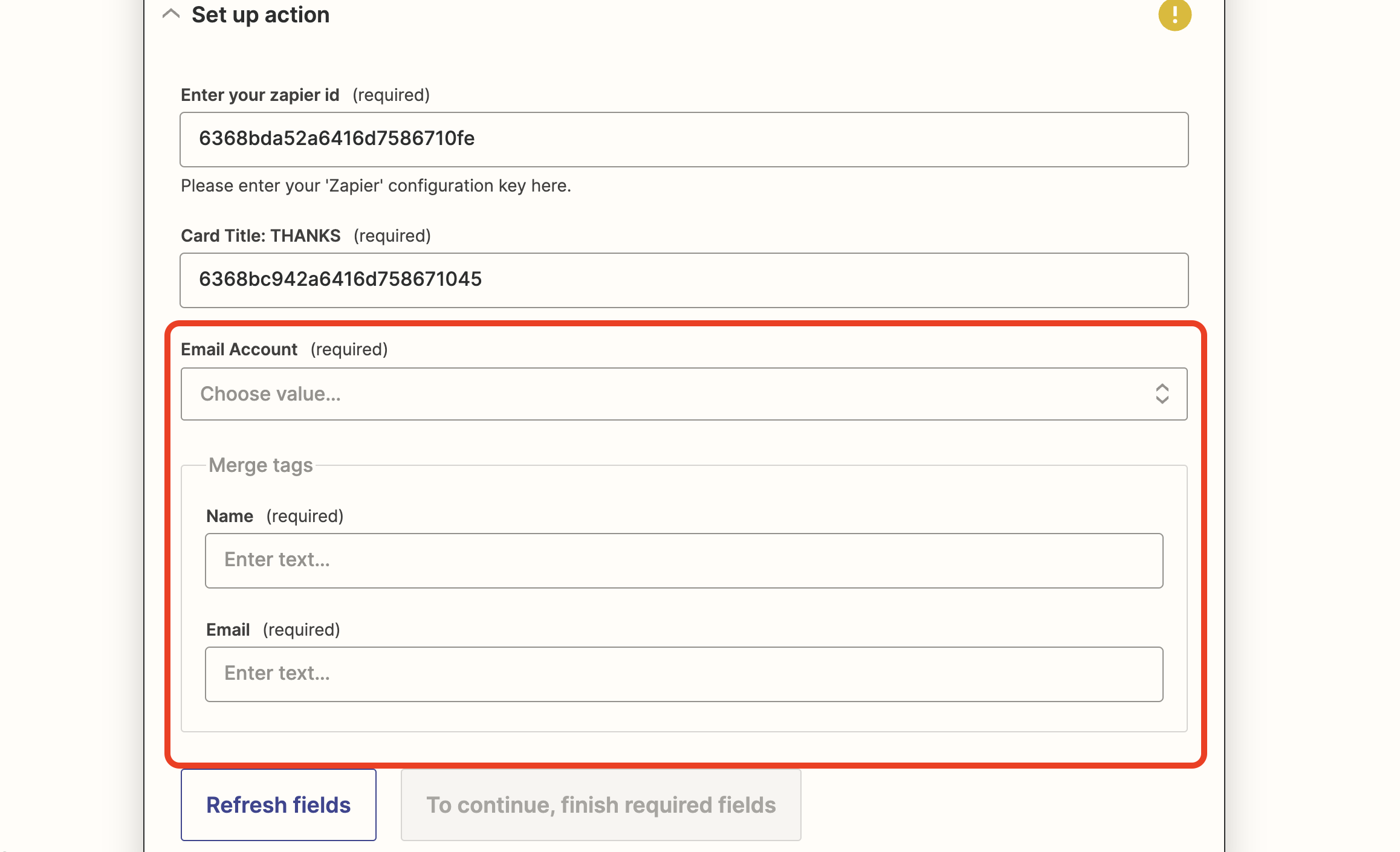 [Learn how to create your Card ID here](/help/zapier-automation/generate-card-id)
Once you have entered the Card ID:
1. Choose your **Sender email account**
2. Search and add a **Name** and **Email** from your trigger app
3. Hit **Continue** and **Test** your Action
4. Then **Publish** it
[Learn how to create your Card ID here](/help/zapier-automation/generate-card-id)
Once you have entered the Card ID:
1. Choose your **Sender email account**
2. Search and add a **Name** and **Email** from your trigger app
3. Hit **Continue** and **Test** your Action
4. Then **Publish** it
 Make sure to test your Zapier integration before publishing to ensure everything works correctly.