> ## Documentation Index
> Fetch the complete documentation index at: https://docs.cardclan.io/llms.txt
> Use this file to discover all available pages before exploring further.
# Connecting an office 365 account to CardClan
> Learn how to configure Microsoft Office 365 email accounts with CardClan for sending cards.
To connect to Microsoft 365, there are a few things that you need to change from the admin center.
Follow the step-by-step process or watch this quick video guide:
[Watch Office 365 Setup Guide](https://www.loom.com/share/501c59f1fa5f4787bbf81ef9657329e1)
## Configuration Details
**SMTP Settings:**
* **Host**: smtp.office365.com
* **Port**: 587
* **Username**: your email
* **Password**: your password
## Step 1: Access Admin Center
Make sure you are logged into the admin office 365 account:
1. Click on **settings**
2. Then click **Admin Center**
3. Then click **show all** within the admin center
4. Then click **Azure Active Directory**
5. Then scroll down find the **properties** tab
 ## Step 2: Adjust Admin Properties
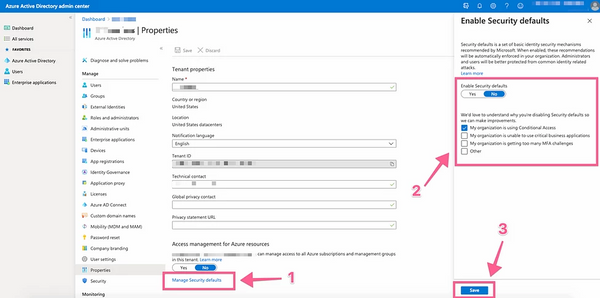
Within the admin properties section, you will need to **Enable Security defaults to No**.
To do this click **"Manage Security Defaults"** then click **No** within the right-hand slider window.
## Step 2: Adjust Admin Properties
Within the admin properties section, you will need to **Enable Security defaults to No**.
To do this click **"Manage Security Defaults"** then click **No** within the right-hand slider window.
 ## Step 3: Allow The Inbox To Use SMTP & IMAP
### A. Access Active Users
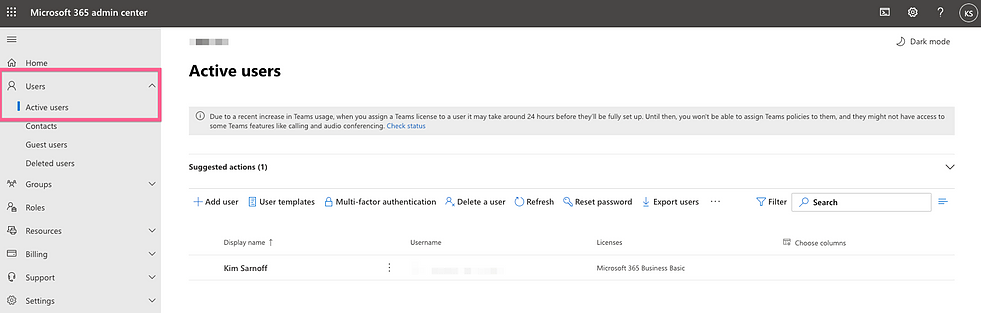
First go back to the **Admin Center** and select **Users > Active Users**
## Step 3: Allow The Inbox To Use SMTP & IMAP
### A. Access Active Users
First go back to the **Admin Center** and select **Users > Active Users**
 ### B. Select User Account
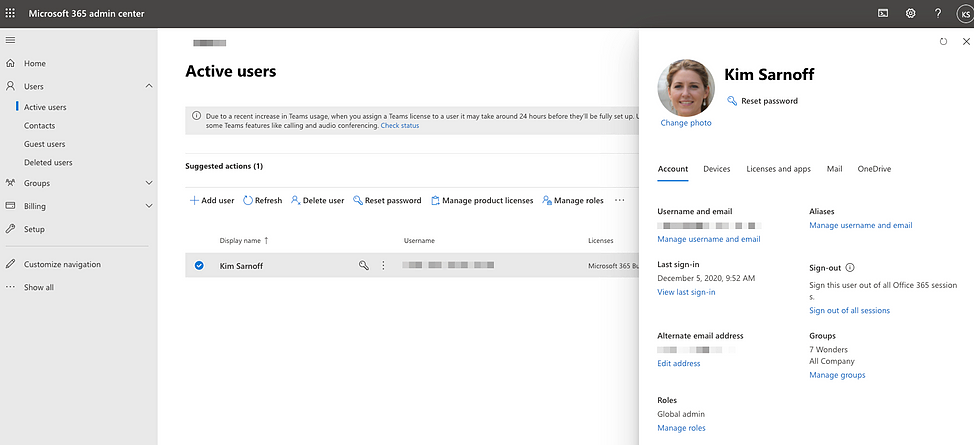
Select the inbox that you want to add to CardClan. By doing this a slider will come out.
### C. Configure Email Apps
Select the **Mail** tab within the slide and click **Manage email apps**
### B. Select User Account
Select the inbox that you want to add to CardClan. By doing this a slider will come out.
### C. Configure Email Apps
Select the **Mail** tab within the slide and click **Manage email apps**
 ### D. Enable IMAP and SMTP
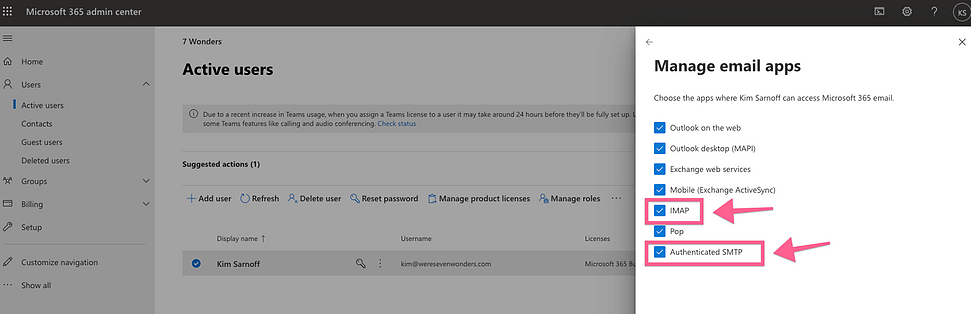
Ensure **IMAP** and **Authenticated SMTP** are checked.
Wait for about an hour, then try reconnecting to allow the changes to propagate.
### D. Enable IMAP and SMTP
Ensure **IMAP** and **Authenticated SMTP** are checked.
Wait for about an hour, then try reconnecting to allow the changes to propagate.