> ## Documentation Index
> Fetch the complete documentation index at: https://docs.cardclan.io/llms.txt
> Use this file to discover all available pages before exploring further.
# How to use merge tags and upload CSV file
> Learn how to personalize cards for bulk sending using merge tags and CSV file uploads.
When you are sending cards to a large number of recipients, you may want to personalize them by replacing the first name of each person on the list, or it could be any other field.
This article will show you how to use merge tags and upload CSV files for personalized bulk sending.
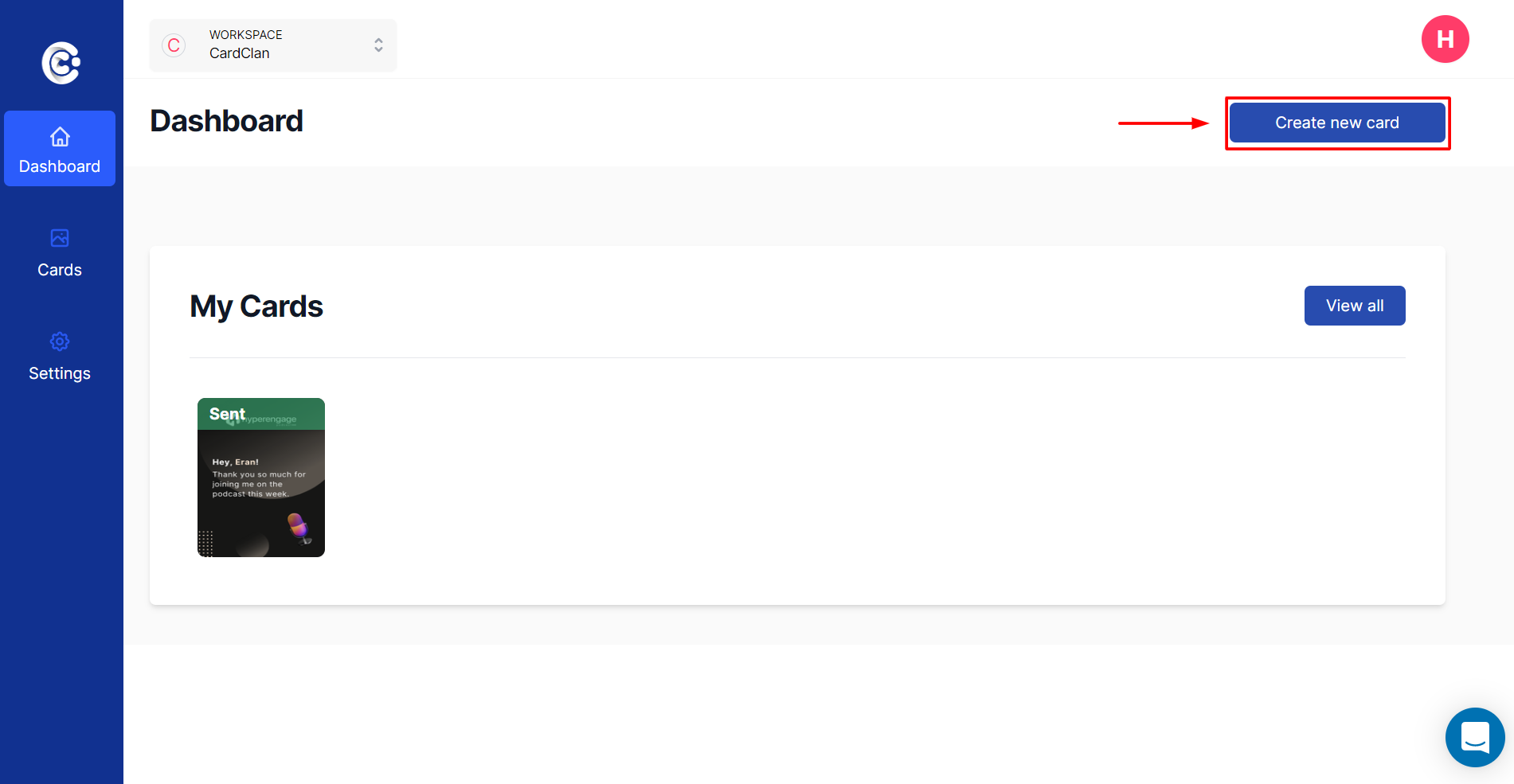
## Step 1: Create a Card
Create a card and choose a template.
 ## Step 2: Access the Editor
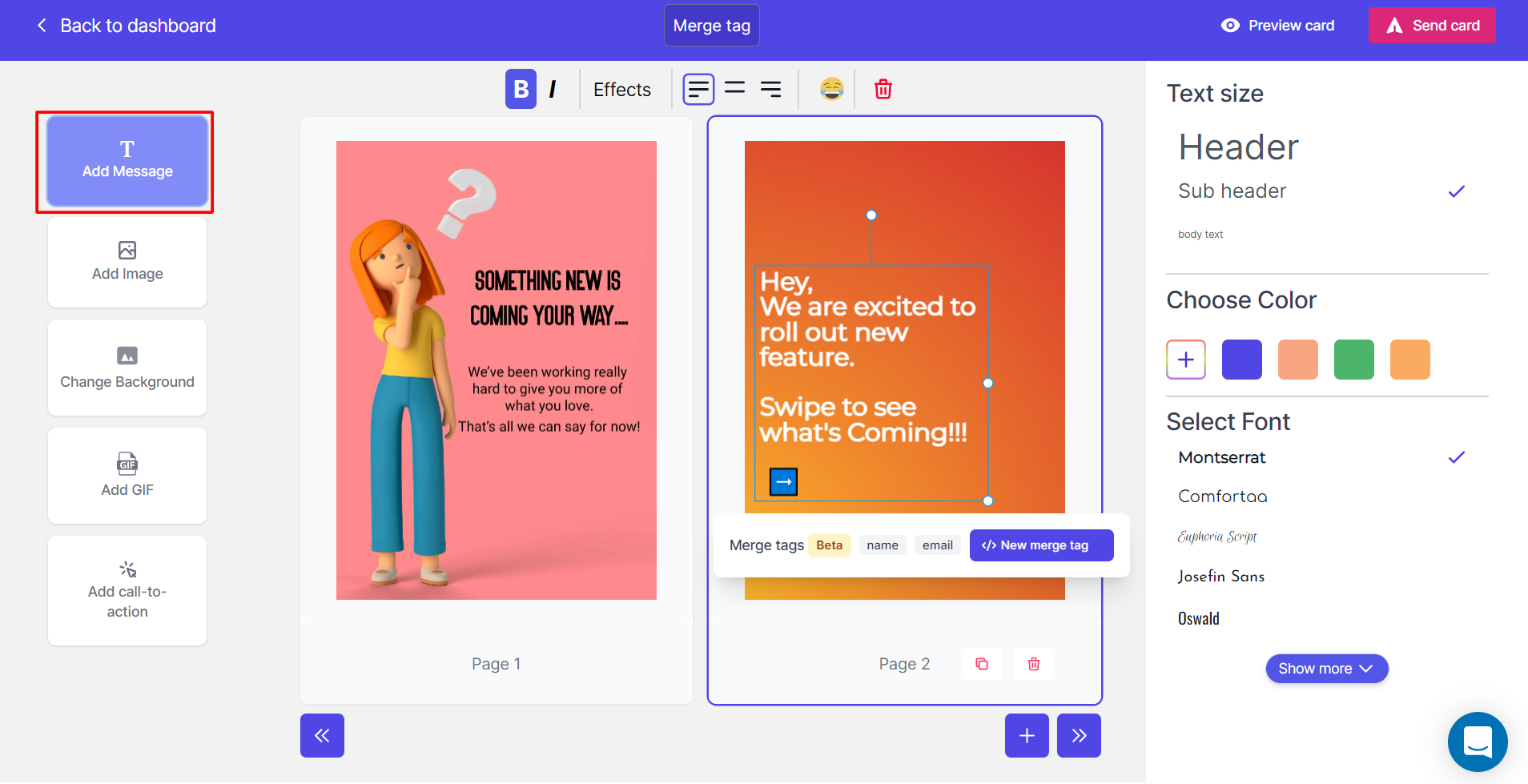
Once you are in the editor, add some text to your card.
## Step 2: Access the Editor
Once you are in the editor, add some text to your card.
 ## Step 3: Add a Merge Tag
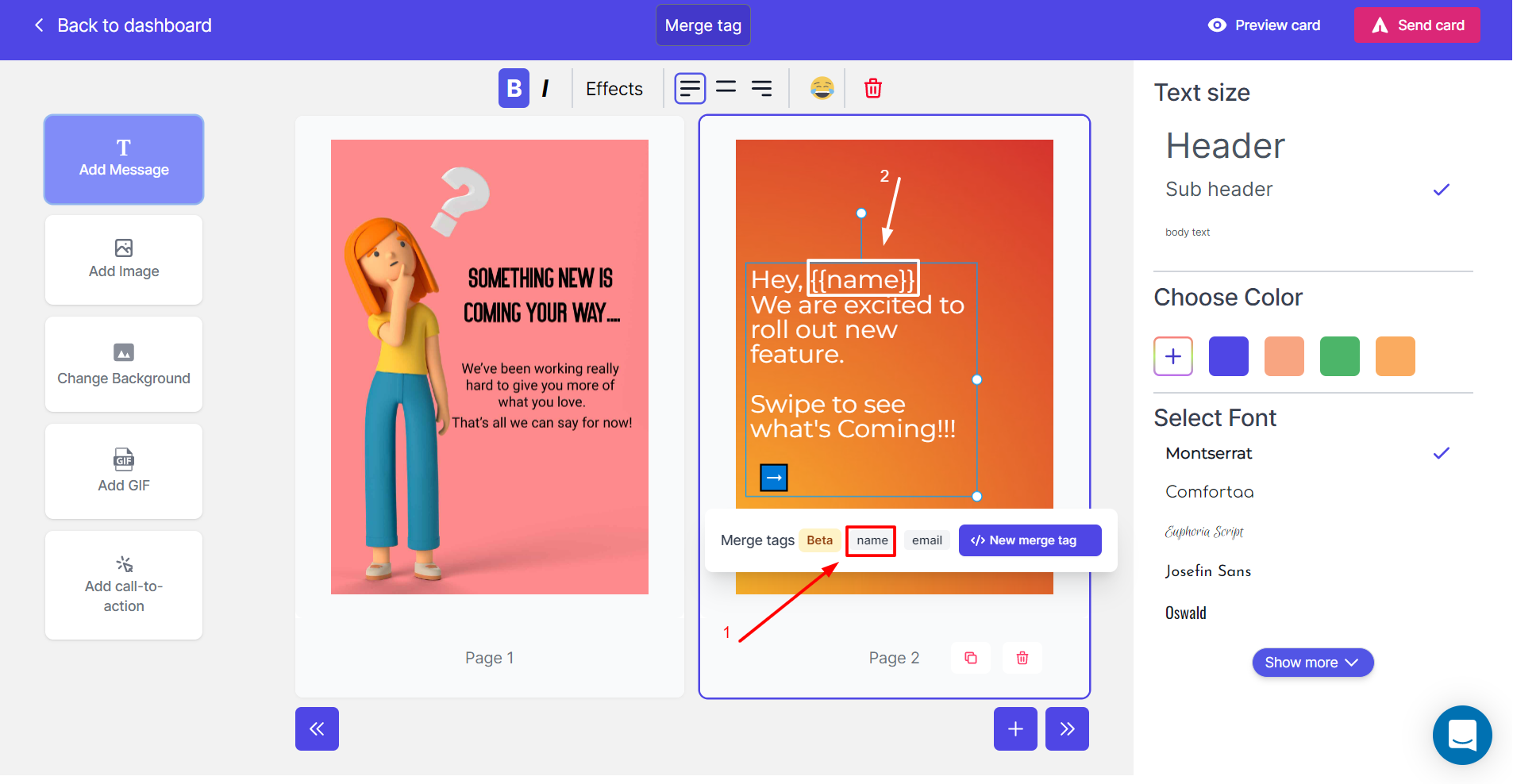
Now let's add a merge tag. Suppose you want to call out the name of every person on the card:
1. Take your cursor in front of "Hey" and click on the **"name"** field
2. You can see a tag has been added `{{name}}`
## Step 3: Add a Merge Tag
Now let's add a merge tag. Suppose you want to call out the name of every person on the card:
1. Take your cursor in front of "Hey" and click on the **"name"** field
2. You can see a tag has been added `{{name}}`
 ## Step 4: Upload CSV
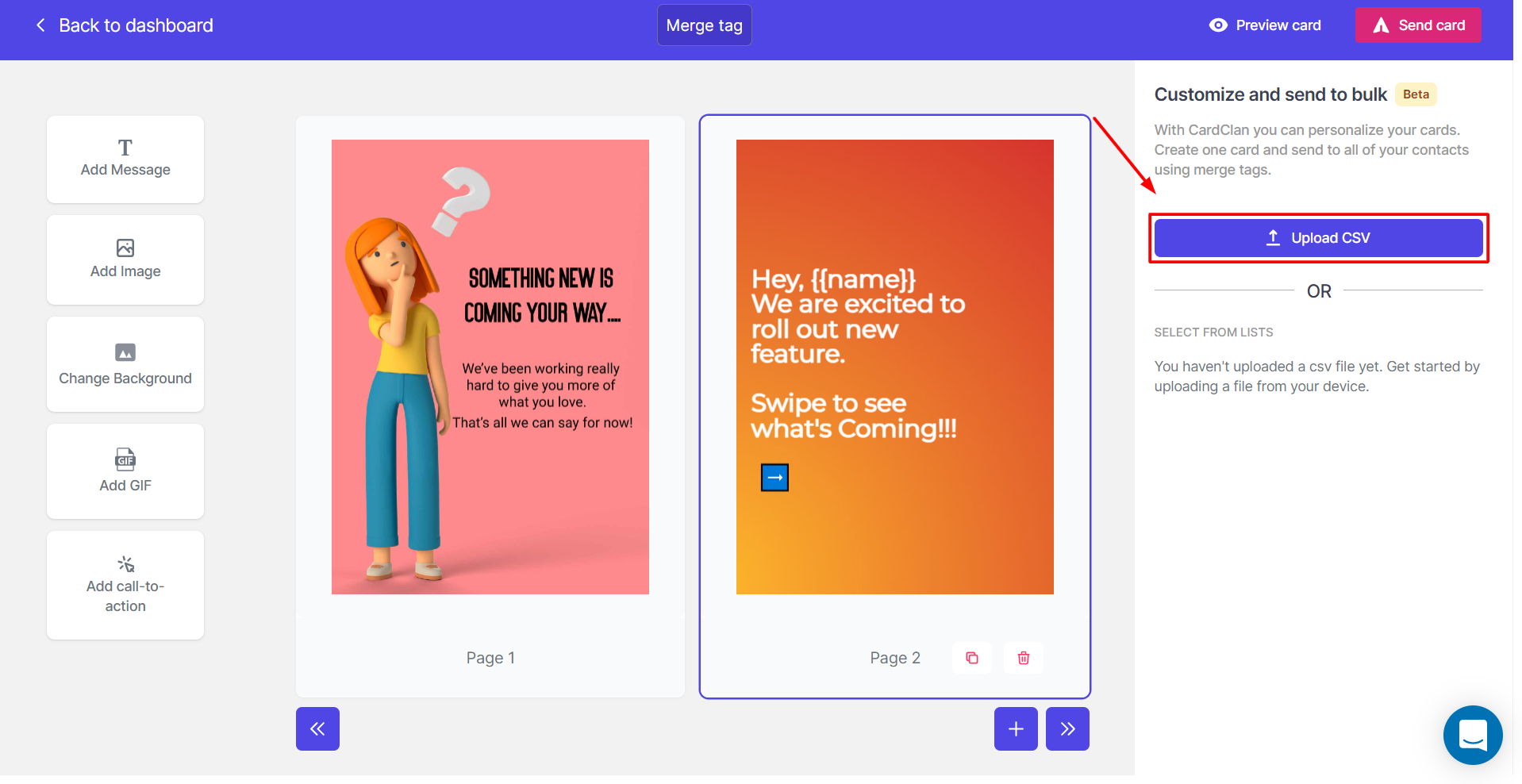
Now let's upload a contact list:
* Click on **Upload CSV** and choose a file in CSV format
## Step 4: Upload CSV
Now let's upload a contact list:
* Click on **Upload CSV** and choose a file in CSV format
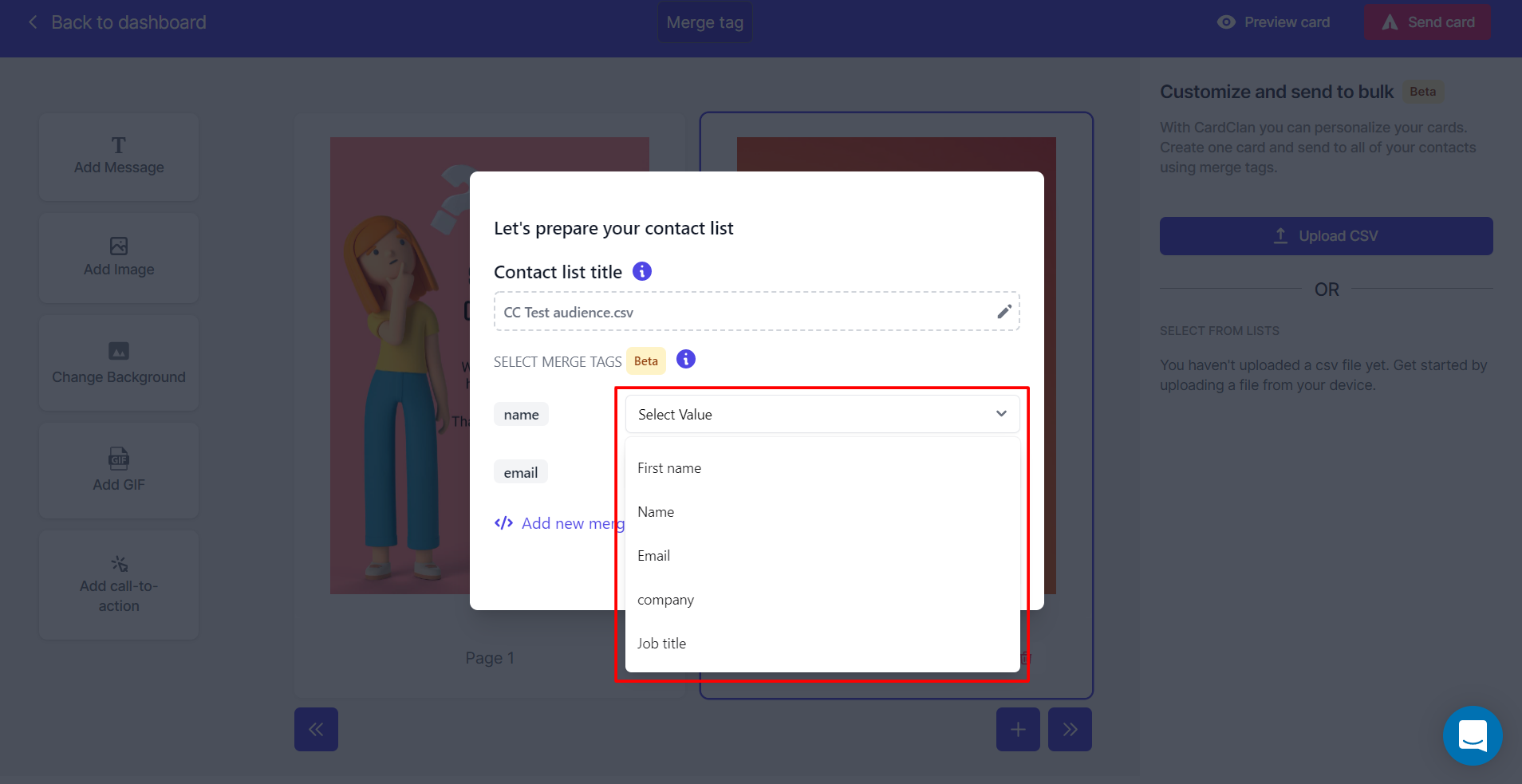
 ## Step 5: Define Merge Tag Fields
Once the file is selected:
1. Hit **Next**
2. Define the merge tag fields by matching the **Name** with the name in your CSV file
## Step 5: Define Merge Tag Fields
Once the file is selected:
1. Hit **Next**
2. Define the merge tag fields by matching the **Name** with the name in your CSV file
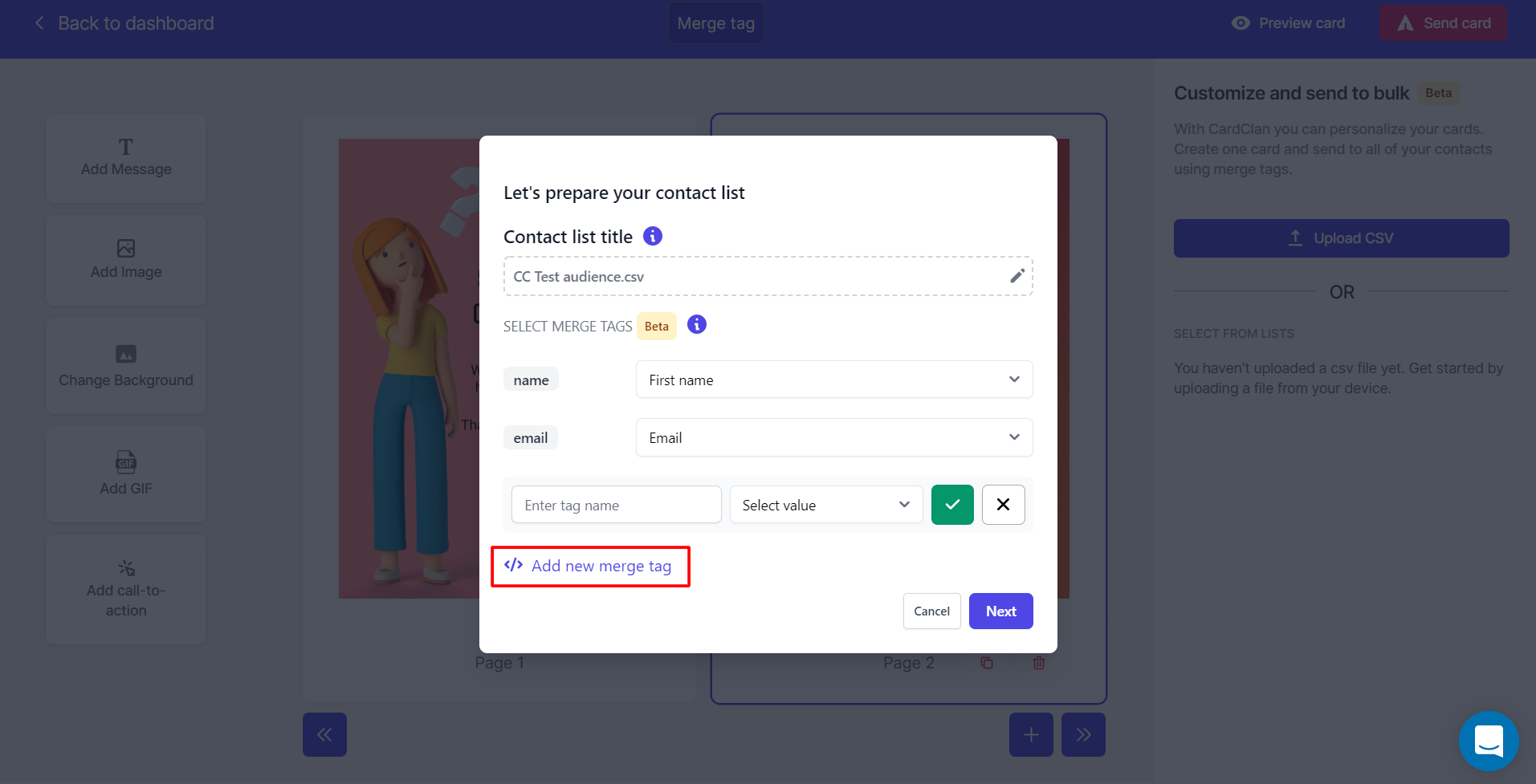
 ## Step 6: Add Custom Merge Tags
You can also add a new merge tag by:
1. Clicking on **"Add new Merge tag"**
2. Give it a name and select the adjacent column in CSV file by **"selecting Value"**
3. Once you are done, click **Next**
## Step 6: Add Custom Merge Tags
You can also add a new merge tag by:
1. Clicking on **"Add new Merge tag"**
2. Give it a name and select the adjacent column in CSV file by **"selecting Value"**
3. Once you are done, click **Next**
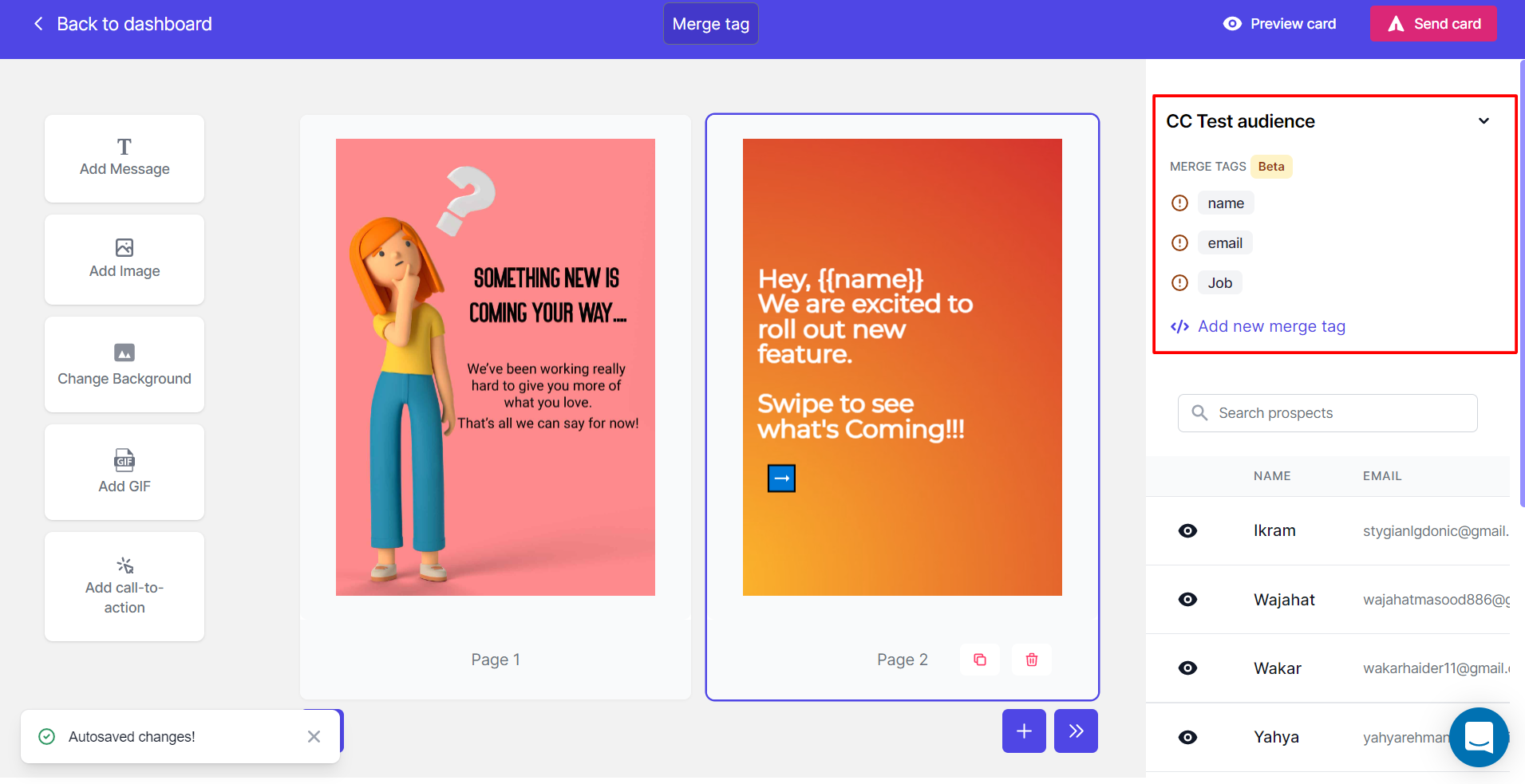
 ## Step 7: Review Errors
If there are any errors or missing fields, they will show up here for you to fix.
## Step 7: Review Errors
If there are any errors or missing fields, they will show up here for you to fix.
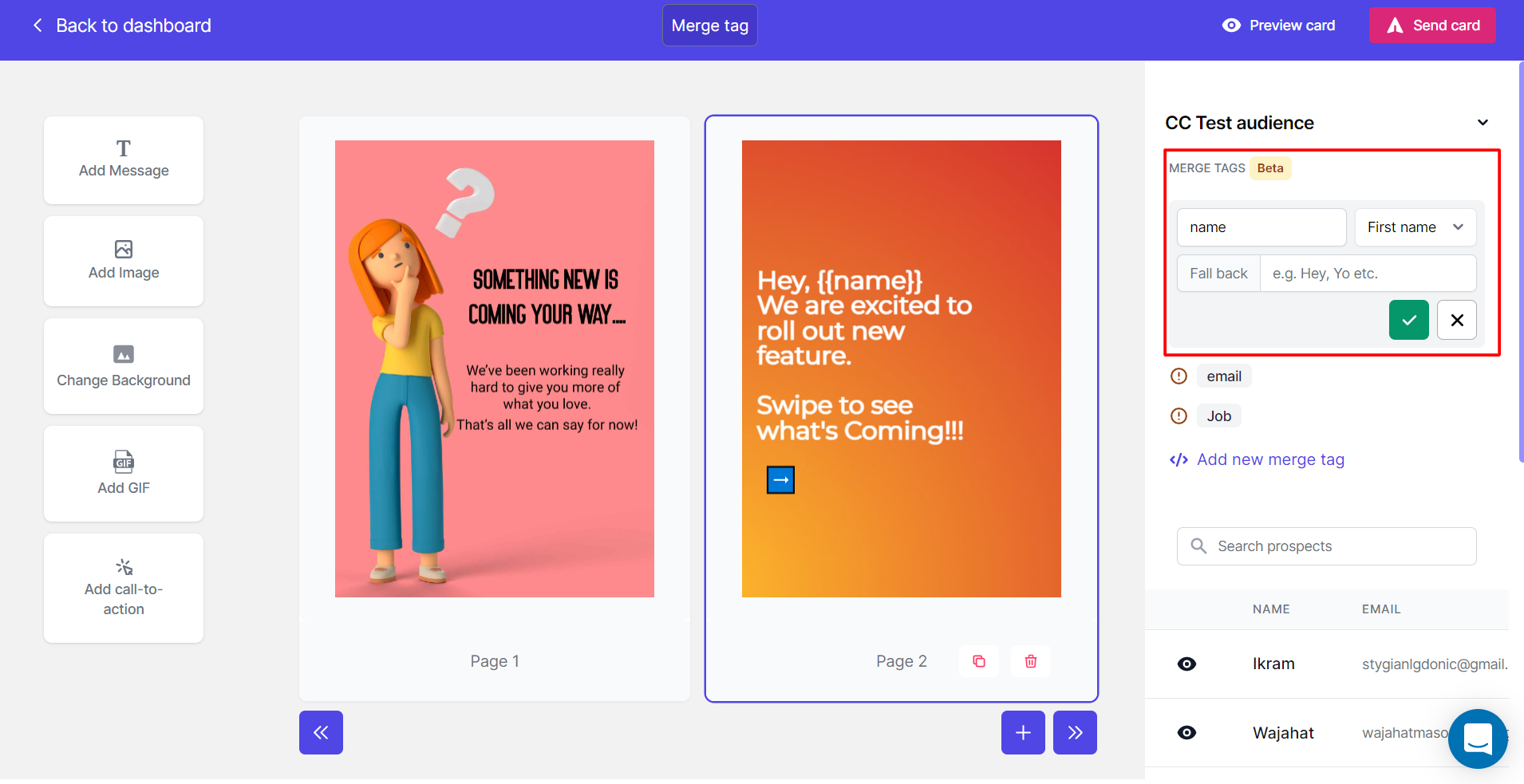
 ## Step 8: Edit Merge Tags
If you hover your cursor over the merge tags you can:
* Edit them
* Add a fallback value
## Step 8: Edit Merge Tags
If you hover your cursor over the merge tags you can:
* Edit them
* Add a fallback value
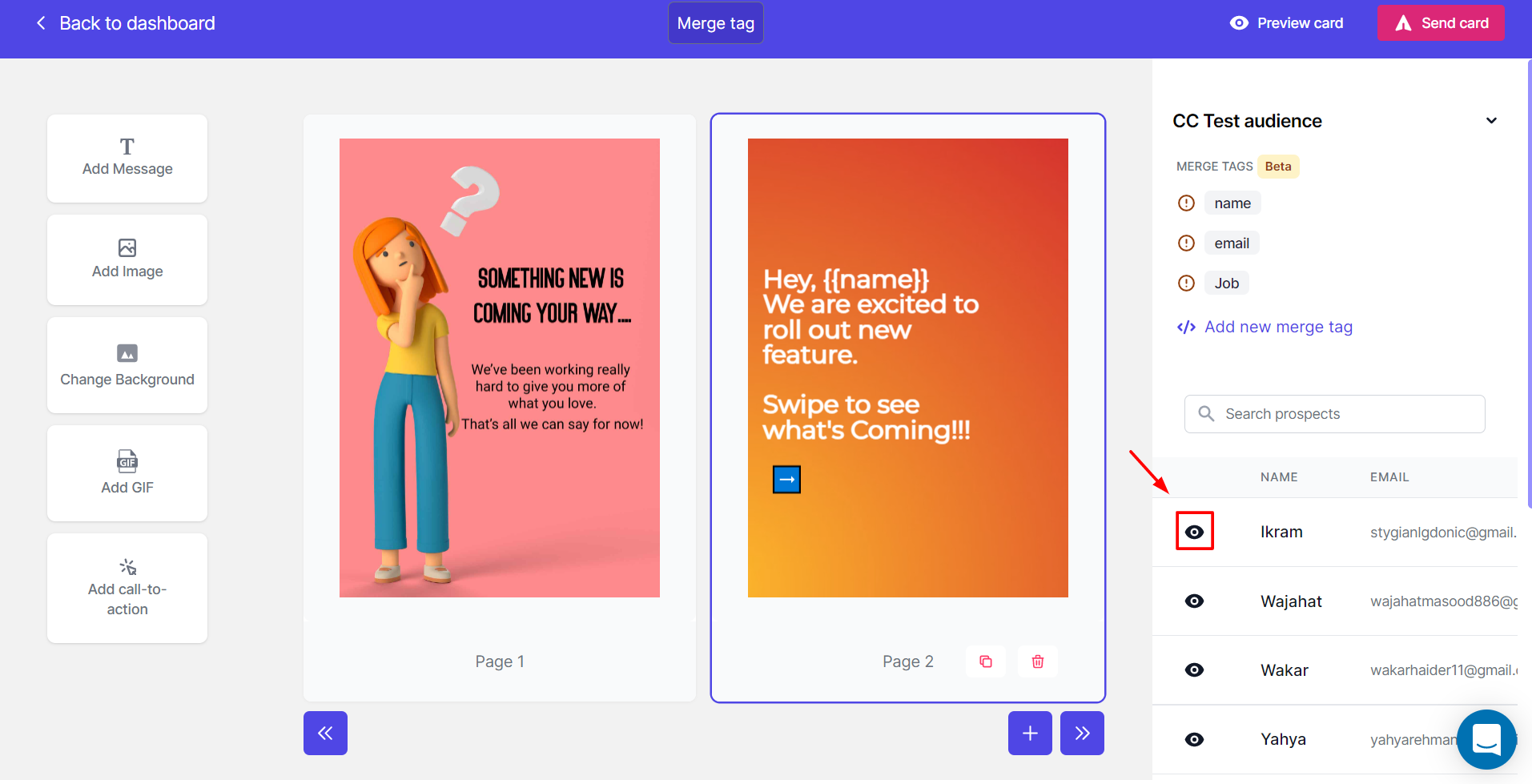
 ## Step 9: Preview Personalized Cards
Let's preview the personalized cards:
1. Click on the small **eye icon** on your right side
2. You can see that merge tag `{{name}}` has successfully replaced the first name from the list
## Step 9: Preview Personalized Cards
Let's preview the personalized cards:
1. Click on the small **eye icon** on your right side
2. You can see that merge tag `{{name}}` has successfully replaced the first name from the list
 Now you are ready to send the personalized cards!
If you have any queries, feel free to reach out to us in live chat or at [hello@cardclan.io](mailto:hello@cardclan.io)
Now you are ready to send the personalized cards!
If you have any queries, feel free to reach out to us in live chat or at [hello@cardclan.io](mailto:hello@cardclan.io)